💡 What This Example Demonstrates
This example shows how to pass page context and product data to your Landbot using the
customData parameter. When a user clicks on a product, the bot opens already knowing which product they're interested in, enabling personalized, context-aware conversations without the user having to repeat information.
🛍️ Product Catalog Demo
Click "Ask About Product" on any card to send that product's data to the bot
🔧 How It Works
Each button passes specific product data as function parameters
<div class="product-card">
    <h3>Premium Plan</h3>
    <p>SKU: PLAN-001</p>
    <p>$99.99/mo</p>

    <!-- Button passes product data to function -->
    <button onclick="askAboutProduct('PLAN-001', 'Premium Plan', 99.99, 'Subscription')">
        Ask About This Product
    </button>
</div>
💡 Key Concept
Notice how each button calls the same function but with different parameters. This is how we pass page-specific context to the bot.
This function receives the product data and creates a fresh bot instance with the context already included
function askAboutProduct(productId, productName, price, type) {
    // ⭐ Step 1: Destroy existing bot instance if present
    if (myLandbot && myLandbot.destroy) {
        myLandbot.destroy();
    }

    // ⭐ Step 2: Check if Landbot SDK is loaded
    if (typeof Landbot === 'undefined') {
        // Load the SDK script first
        var s = document.createElement('script');
        s.type = "module";
        s.async = true;
        s.addEventListener('load', function() {
            setTimeout(function() {
                createBotWithData(productId, productName, price, type);
            }, 500);
        });
        s.src = 'https://cdn.landbot.io/landbot-3/landbot-3.0.0.mjs';
        document.body.appendChild(s);
    } else {
        // SDK already loaded, create bot directly
        createBotWithData(productId, productName, price, type);
    }
}

// ⭐ Step 3: Create bot with customData parameter
function createBotWithData(productId, productName, price, type) {
    myLandbot = new Landbot.Popup({
        configUrl: 'YOUR-BOT-CONFIG-URL',
        customData: {  // ← Pass data directly in config!
            product_id: productId,
            product_name: productName,
            product_price: price,
            product_type: type,
            page_url: window.location.href,
            action: 'product_inquiry',
            timestamp: new Date().toISOString()
        }
    });

    // ⭐ Step 4: Open the bot - it already has the context!
    setTimeout(function() {
        myLandbot.open();
    }, 500);
}
⭐ Key Approach: customData Parameter
This is the magic! We pass customData directly in the Landbot.Popup configuration, so the bot already knows the product context when it opens:
customDataparameter - Passes structured data during bot initialization- Bot immediately has access to variables like
@product_name,@product_price, etc. - No need to send a message - the bot greets the user with context already in place!
Why this approach? By passing customData in the config, the bot has the context from the very first moment. We destroy and recreate the bot instance for each product to ensure fresh data.
Here's an example of the data object sent when clicking "Premium Plan"
📘 How the Bot Uses This Data
In your Landbot flow, you can access these values:
@product_name→ "Premium Plan"@product_price→ 99.99@product_id→ "PLAN-001"@page_url→ Current page URL
Note: Bot configuration needed - we'll explain this later!
Optional utility to ensure bot is ready before actions
// Declare global bot variable
var myLandbot;

// Helper to wait for bot readiness
function waitForLandbot(callback, retries = 0) {
    if (typeof Landbot !== 'undefined' && myLandbot && myLandbot.open) {
        callback();
    } else if (retries < 50) {
        setTimeout(() => waitForLandbot(callback, retries + 1), 100);
    }
}
💡 Note on Initialization
Unlike previous examples, we don't initialize the bot on page load. Instead, we create a fresh bot instance with customData each time the user clicks a product button. This ensures each product gets its own context.
📝 Summary: What Happens
- User clicks "Ask About Product" on a specific item
- Button calls
askAboutProduct()with product details - Function destroys any existing bot instance (if present)
- New bot instance is created with
customDataparameter containing product info, URL, timestamp myLandbot.open()opens the chat window- Bot greets user with personalized message acknowledging the product (e.g., "I see you're interested in Premium Plan for $99.99!")
- User responds to bot's greeting and conversation begins naturally
- Bot provides context-aware responses about that specific product
💼 Real-World Use Cases
- E-commerce: Product pages sending SKU, name, price, inventory status
- Real Estate: Property listings sending address, price, bedrooms, features
- SaaS: Pricing pages sending plan details, features, billing cycle
- Booking Sites: Hotel/flight details with dates, prices, availability
- Documentation: Current page topic, section, user progress
- Support: User account info, subscription status, recent activity
🎯 Best Practices
- Use Descriptive Keys:
product_namenotpn - Include Context: Always send page URL and action type
- Send Relevant Data: Only include what the bot needs
- Use Consistent Naming: Keep variable names consistent across your site
- Add Timestamps: Include when data was captured if time-sensitive
- Test Thoroughly: Verify bot receives and displays data correctly
⚙️ Bot Setup Required
To use this data in your Landbot, you need to:
- Create variables in Landbot matching your data keys (
product_name,product_price, etc.) - Use these variables in your bot flow with
@product_namesyntax - The bot will automatically populate these with the sent data
💡 Recommended Bot Flow
First Message (Welcome Block):
"I see you're interested in @product_name for $@product_price! 🎉 How can I help you with this product?"
This acknowledges the context immediately, making the conversation feel personalized and natural. The user doesn't need to repeat what they clicked on!
📸 First Block Setup with Custom Data Fields
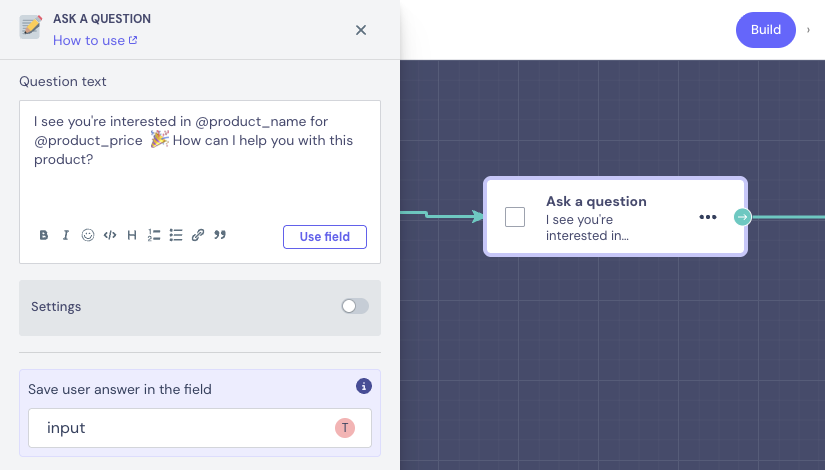
Screenshot showing the first welcome block that uses custom data fields like @product_name and @product_price to personalize the greeting
🤖 AI Agent Configuration with Custom Data
The AI Agent needs to be configured to access and use the custom data fields passed from your website. This allows the bot to have context-aware conversations about specific products.
📸 AI Agent Setup with Fields & Knowledge
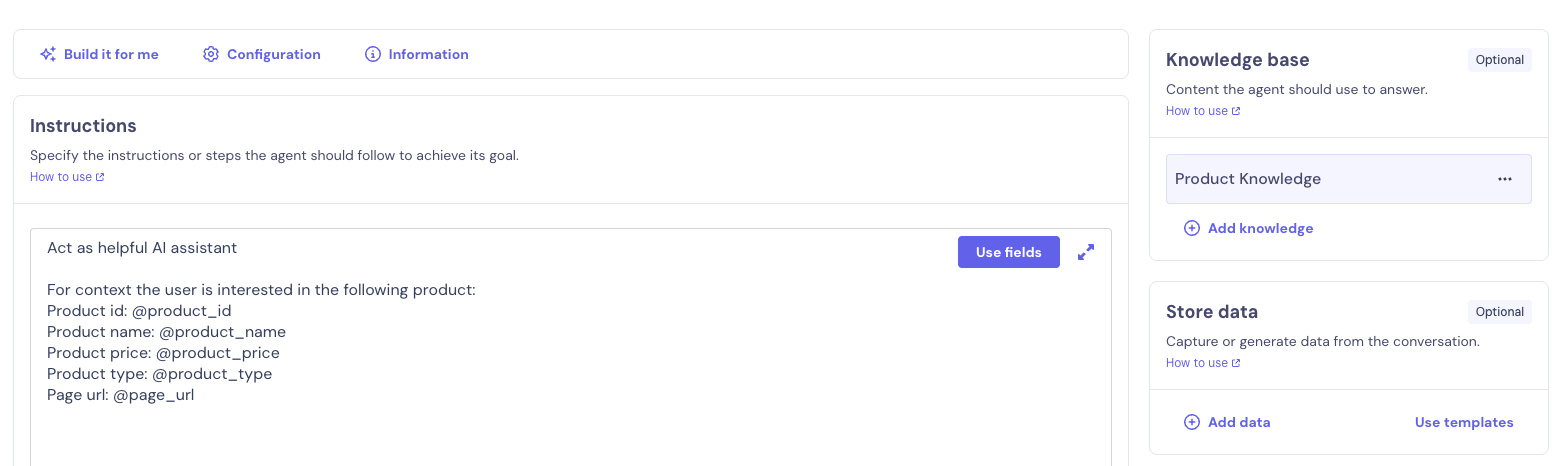
Screenshot showing how to configure the AI Agent with custom data fields and knowledge to provide context-aware responses
🔄 Complete Bot Flow with Context
Here's the complete bot flow showing how custom data is received and used throughout the conversation to provide personalized product assistance.
📸 Bot Flow with Custom Data
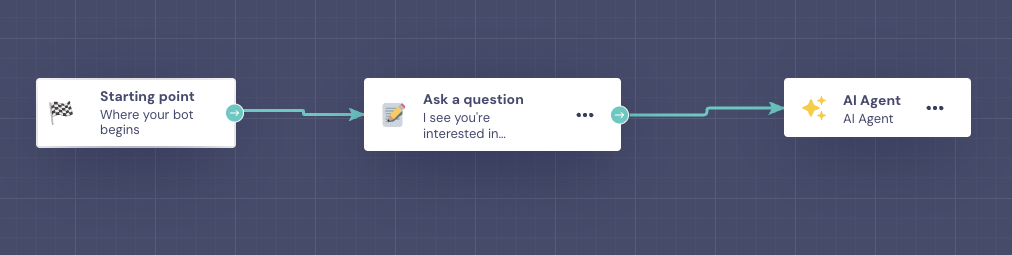
Screenshot showing the complete bot flow that uses custom data (product_name, product_price, product_id) to provide personalized responses